Since this was done on Dancing With the King, we are going to be using it as our example.
So, if you have a need to create a link that automatically loads an option on a WooCommerce product. Say, for example, you need a link that automatically selects specific dancers as below. The first thing you need to figure out is what are you going to be adding to your URL. Start by inspecting the option (if you right click on the dropdown itself, it should open it automatically to what we need; if you click on the title, you will need to open the descending arrows further to get to the the option).
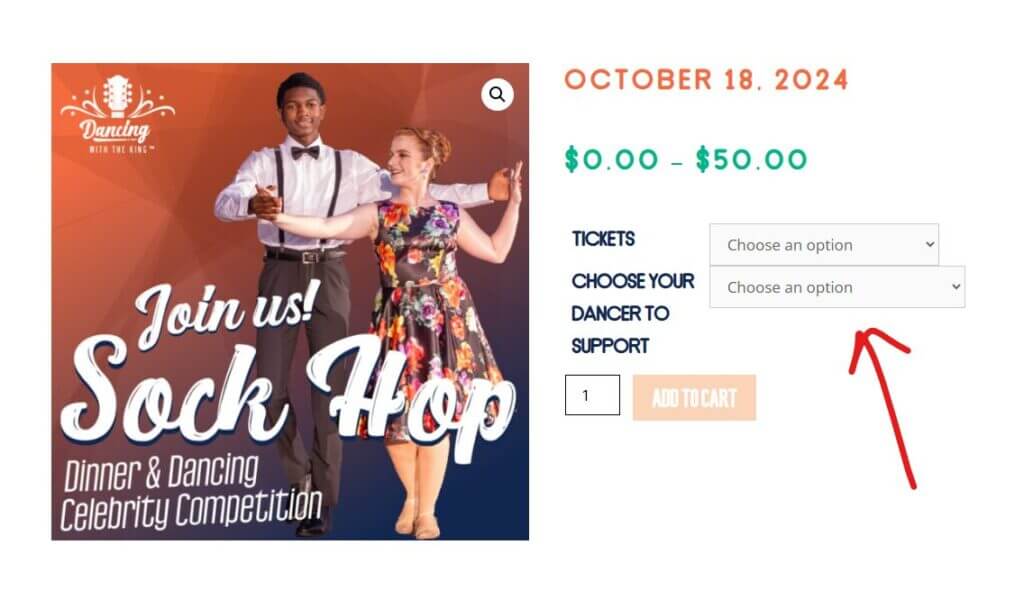
You will need to find the attribute name section. This is what will be added to the URL to tell it “hey, this is where you need to go”. In this case, this is attribute_choose-your-dancer-to-support. If the attribute is something short like color or size, it should simply be attribute_color or attribute_size but always good to check juts to be sure.

Once you’ve got the name of the attribute you’re pointing to, you can begin building the URL. This will be the product in question. In this case, this URL https://dancingwiththeking.com/product/sock-hop/. Onto the end of this URL behind the final forward slash, you will add a question mark and then your attribute name pulled from inspect.
Base URL

https://dancingwiththeking.com/product/sock-hop/

With the Attribute Name

https://dancingwiththeking.com/product/sock-hop/?attribute_choose-your-dancer-to-support
Now, you need to point the link to the options. You can copy them in myriad ways, either from the options under inspect, an already created list, or go into the product and copy them from that.

Once you have a list of whatever your attributes are, you can begin adding them to your URLs. The first thing to add is a = after your attribute name. Then, after that, you will begin adding your attributes. If the attributes do not have spaces, you can simply add the names. If the attributes do have spaces, you will need to account for that by replacing the spaces with %20.
Base URL With the Attribute Name

https://dancingwiththeking.com/product/sock-hop/?attribute_choose-your-dancer-to-support

Adding the Equal Sign

https://dancingwiththeking.com/product/sock-hop/?attribute_choose-your-dancer-to-support=

Adding the Attribute

https://dancingwiththeking.com/product/sock-hop/?attribute_choose-your-dancer-to-support=Airean%20Emerson
If you are needing some nice, clean URLs to link to people, you can download the Redirection plugin.
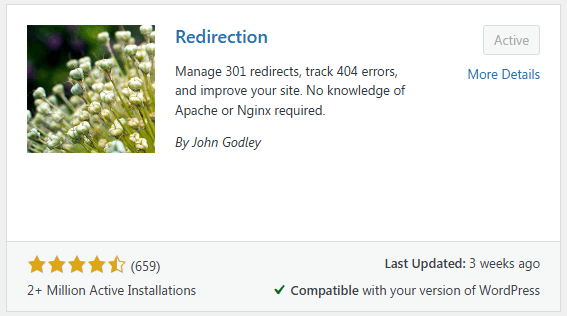
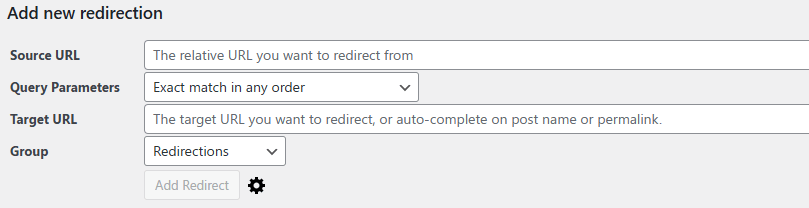
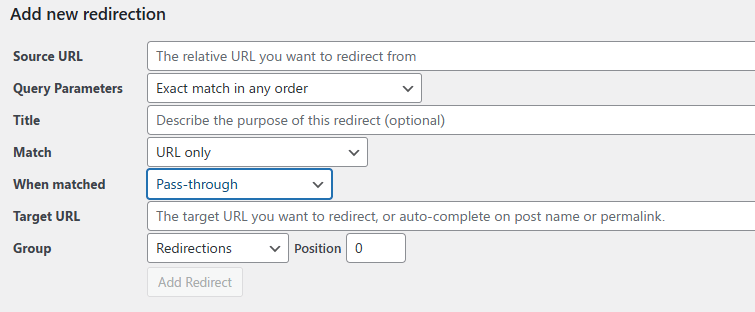
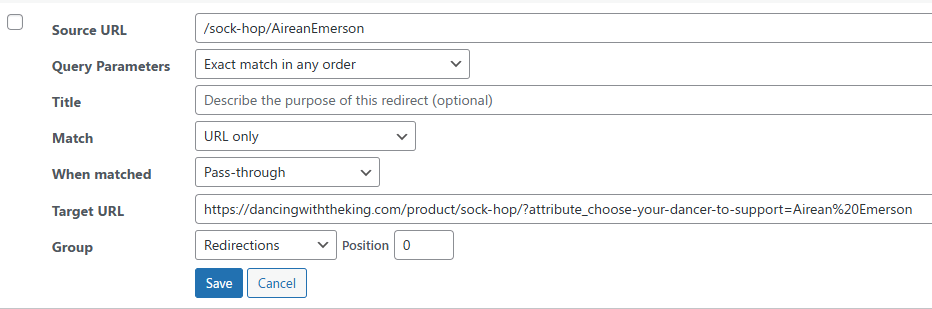
In the plugin you will have the source as the simplified URL you are giving out and this doesn’t have to actually be a page that exists. The target will be your final URL from above with everything added to it. And then you will click the gear when creating your redirection to get the option to change the when matched option to pass-through. If you forget to do this part initially, you can edit the redirection and change it after.