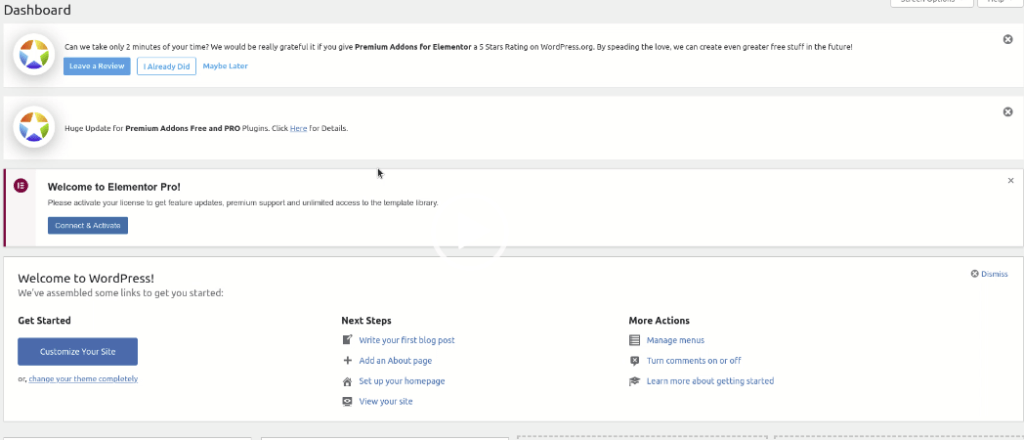
Clean up pop ups.
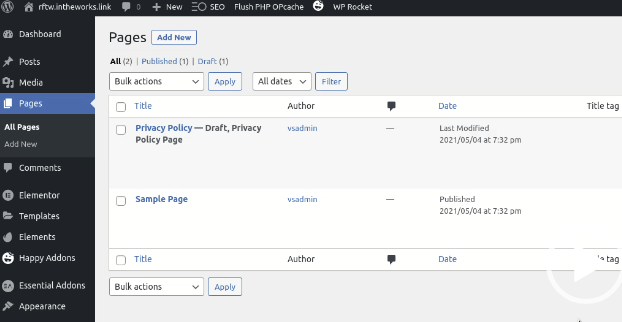
Get rid of any data we don’t need such as Sample Posts and Sample Pages. Keep the Privacy Policy because we will use that.
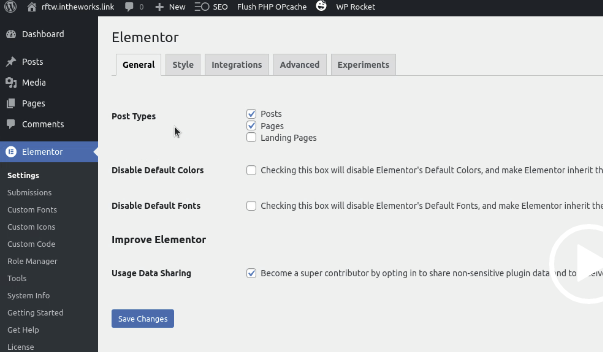
Elementor Plugin
Post Types: Post Pages
Using Data Sharing: Become a super contributor
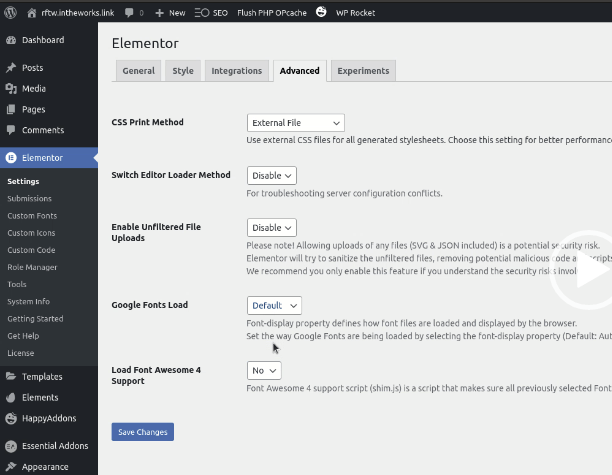
Select the Advanced Tab
Select Google Fonts Load to Swap
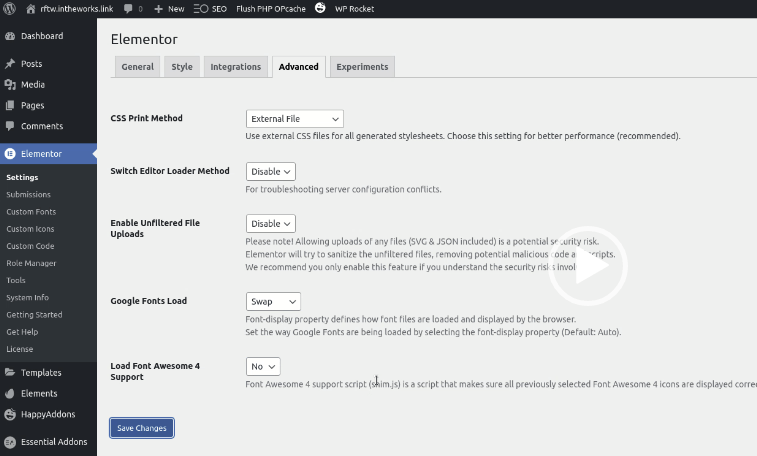
Select No under Load Font Awesome 4 Support
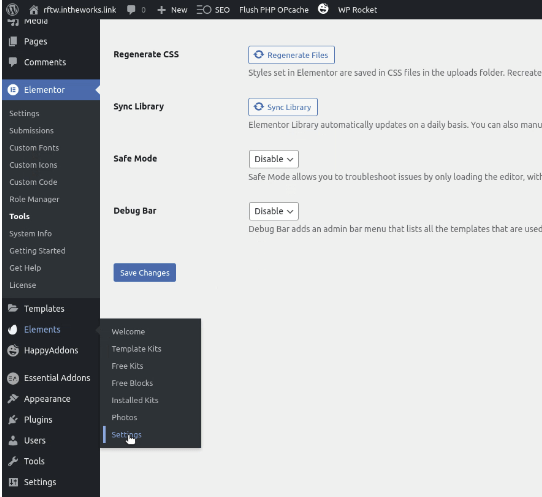
Go to Elements Settings
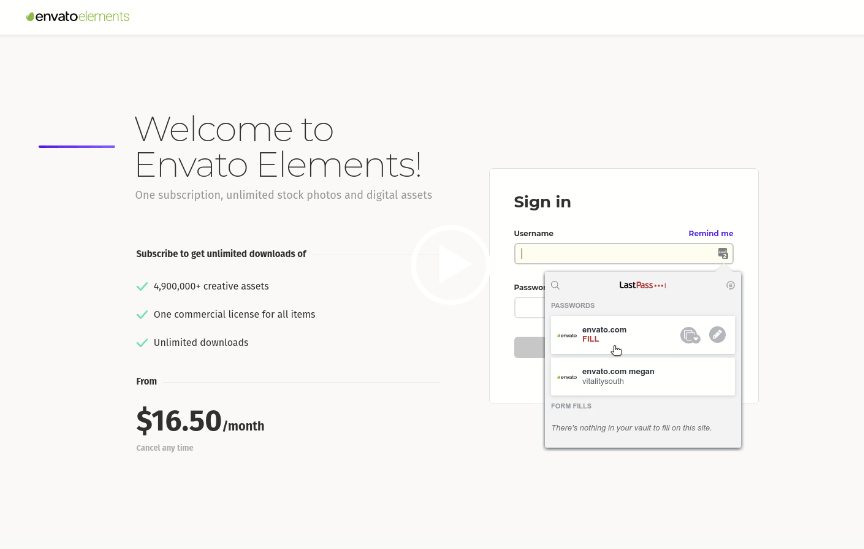
Select Follow the Link to envatoelements to verify a token.
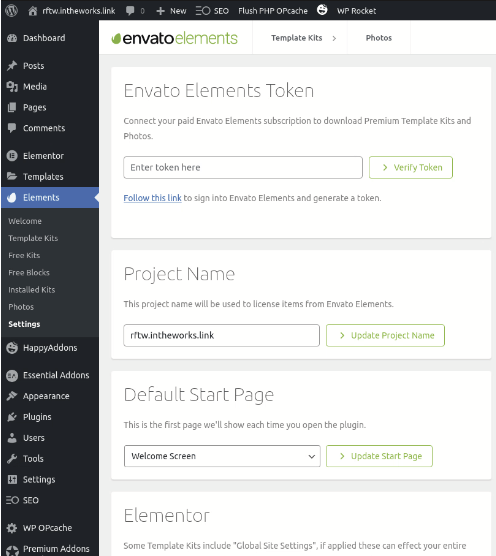
Get credentials from LastPass
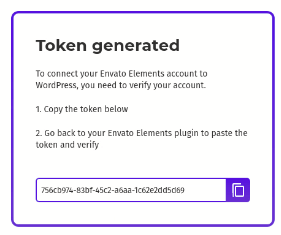
Copy Token Generated and Verify
Go to Happy Addons
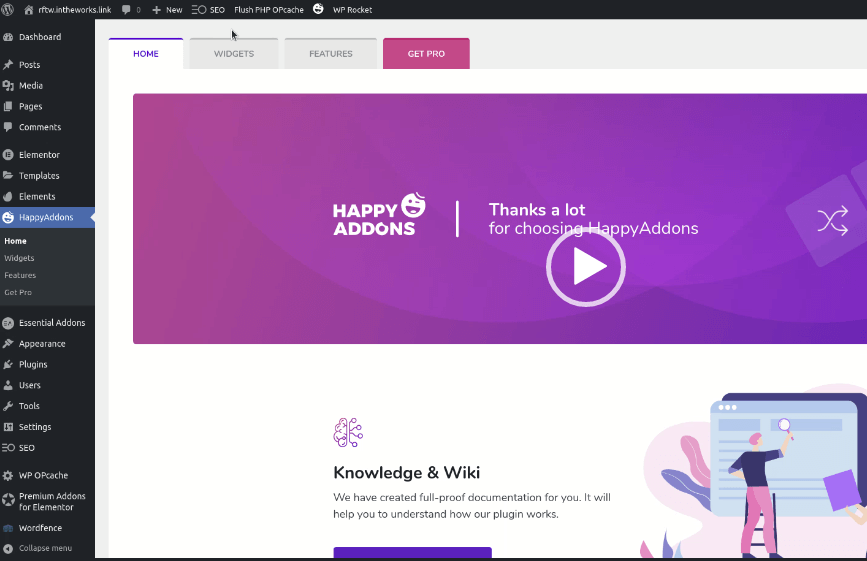
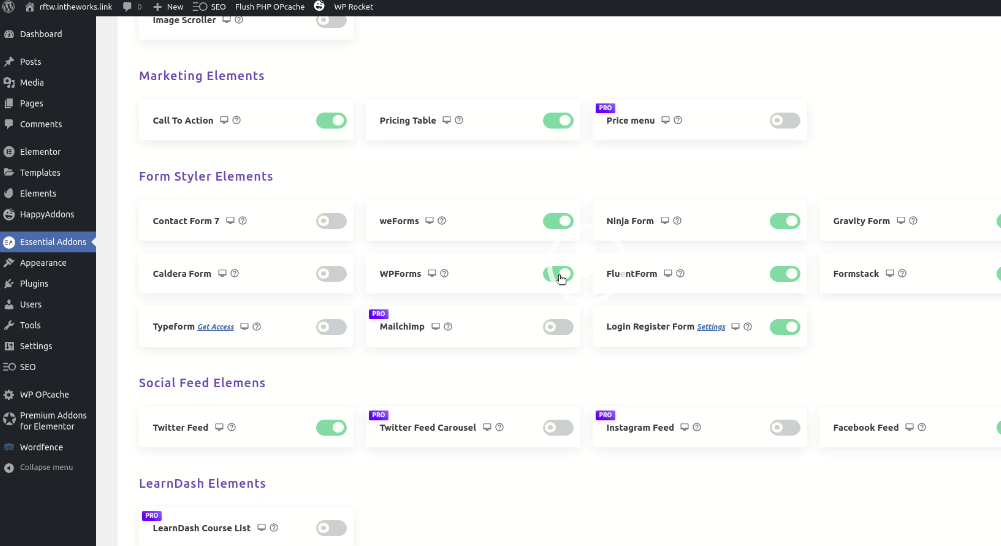
Turn off in Happy Addons
-Caldera Forms
-Contact Form7
-WP Forms
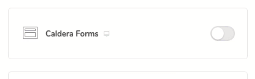
Go to Essential Addons
Select Elements and Turn Off
All Forms Except Gravity Forms
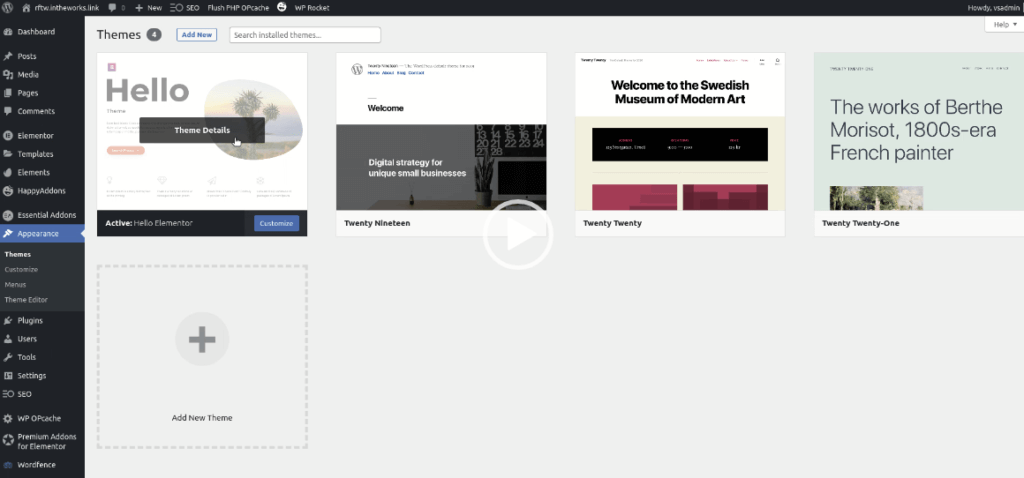
Go to Appearance
Delete Excess Themes leaving one extra theme for backup.
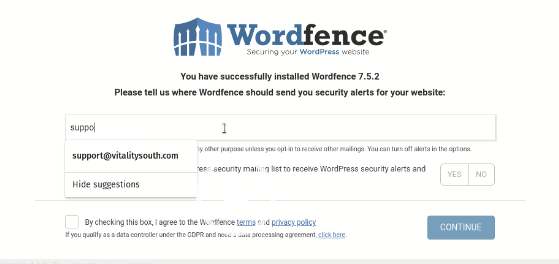
Go to WordFence
Enter support@vitalitysouth.com and check box to Agree to Terms
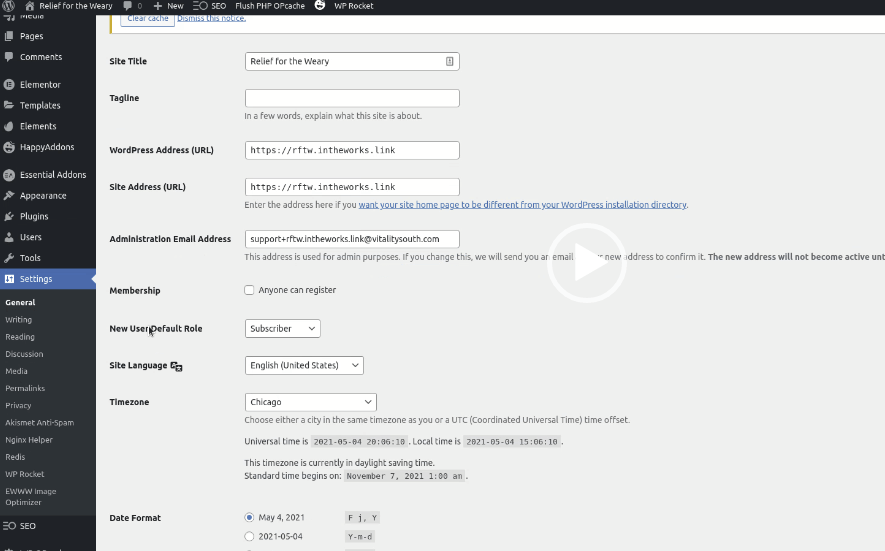
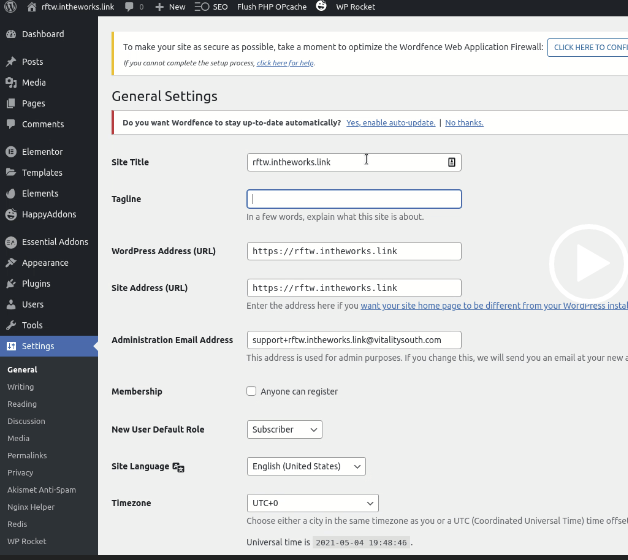
Go to Settings
Add Title
Remove Tagline
Enable Auto Updates
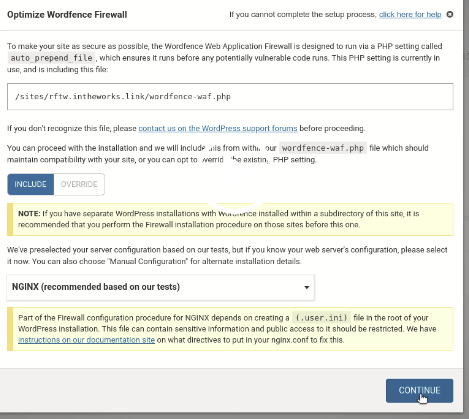
Go to the top of the page and click here to configure Wordfence Web Application.
Continue
Go to Settings
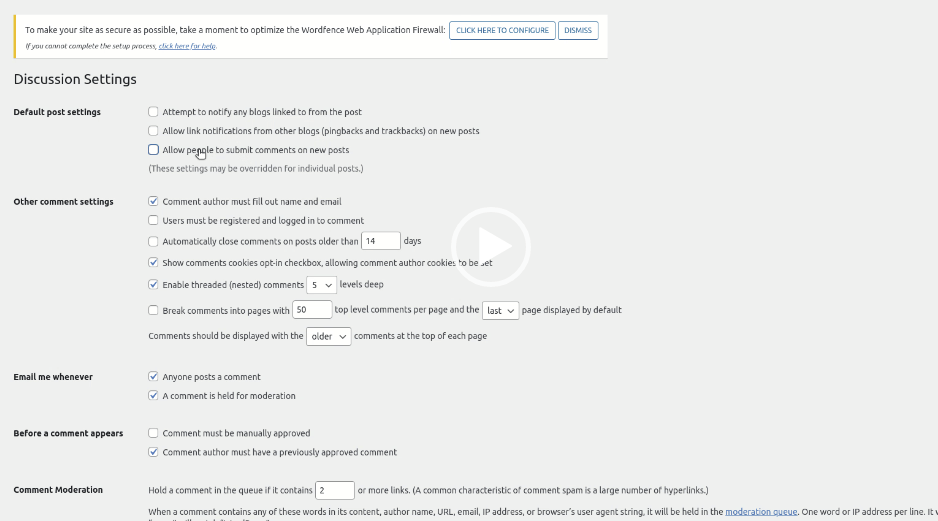
Discussions
Remove Allow People to Submit a Comment on Posts
Under Settings Go to Permalink
Select Post Name under Common Settings
Privacy Settings Use This Page
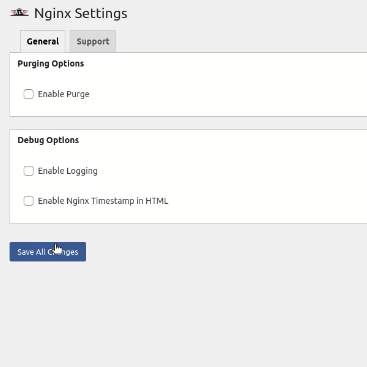
Nginx Save all Changes Screen
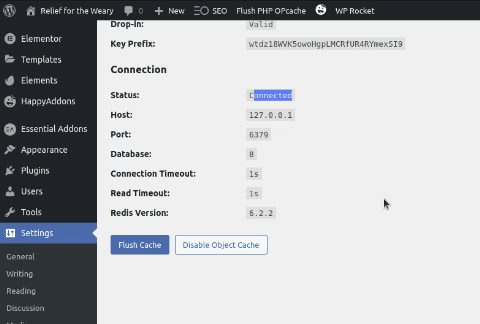
Make Sure Redis Status is Connected
WPRocket
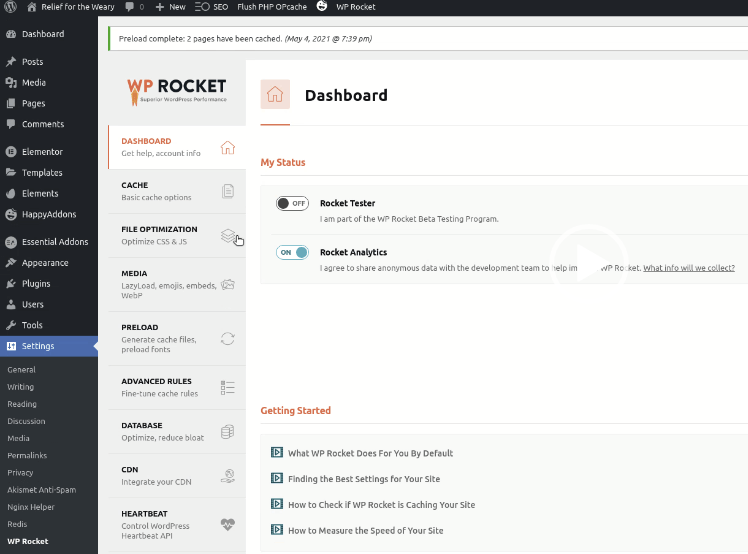
WPRocket – Select File Optimization
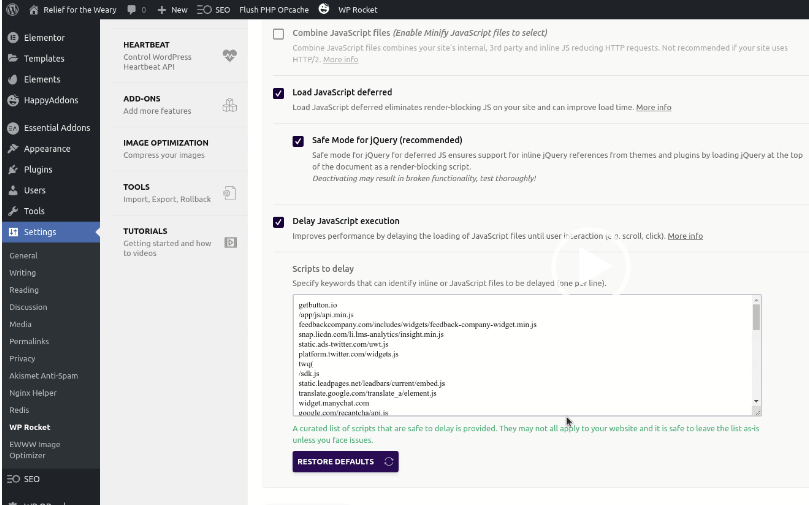
WPRocket – Select Remove JQuery Migrate and Load Deferred
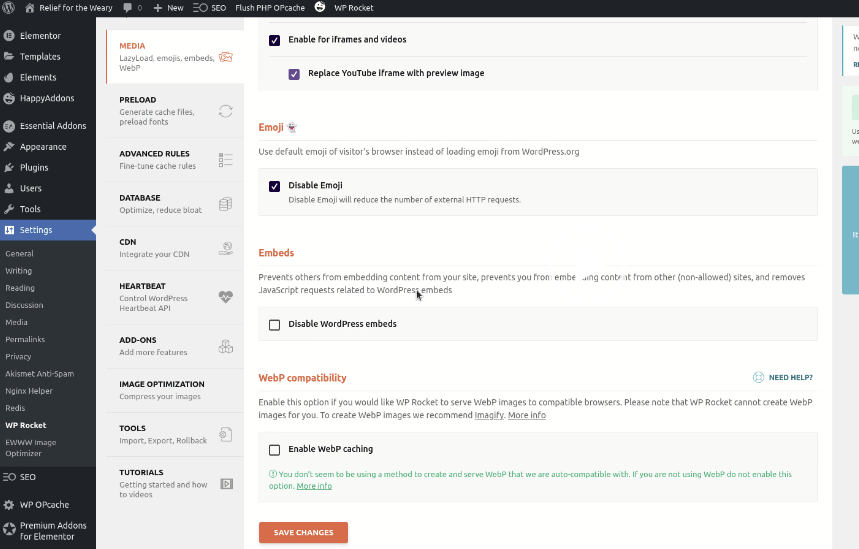
WPRocket – Select Media
Enable for iframes and videos, Replace YouTube iframe with preview image, disable emoji and disable WP videos
WPRocket – Select Database
Trash Posts, Trash Comments, Spam Comments, Trashed Comments, Expired Comments, and Scheduled Automatic Cleanup
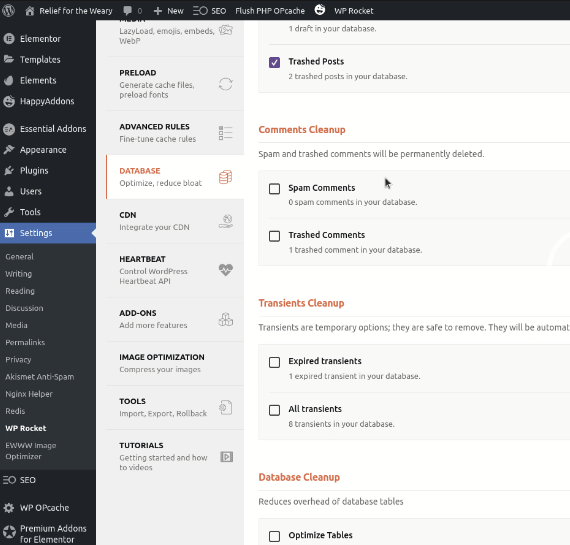
RPRocket – Database
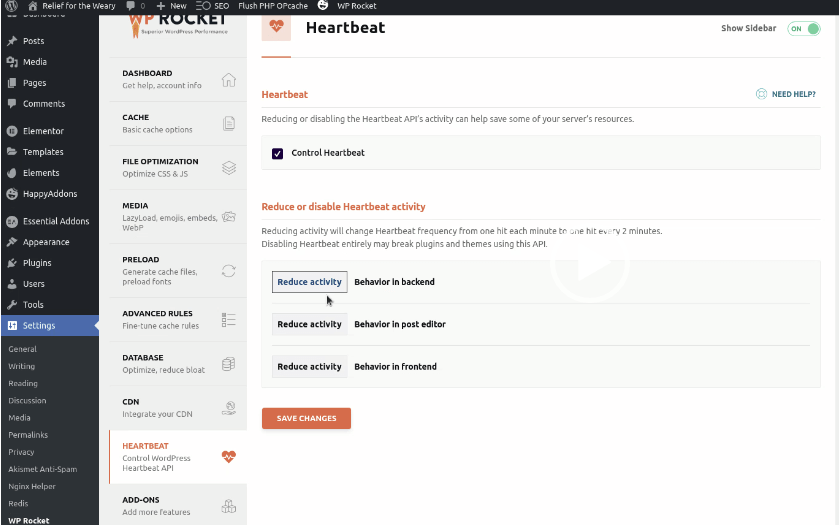
Control Heartbeat
Change Reduce activity Behavior in backend to Do no Limit and Do Not Limit Behavior is post editor
EWWWImage
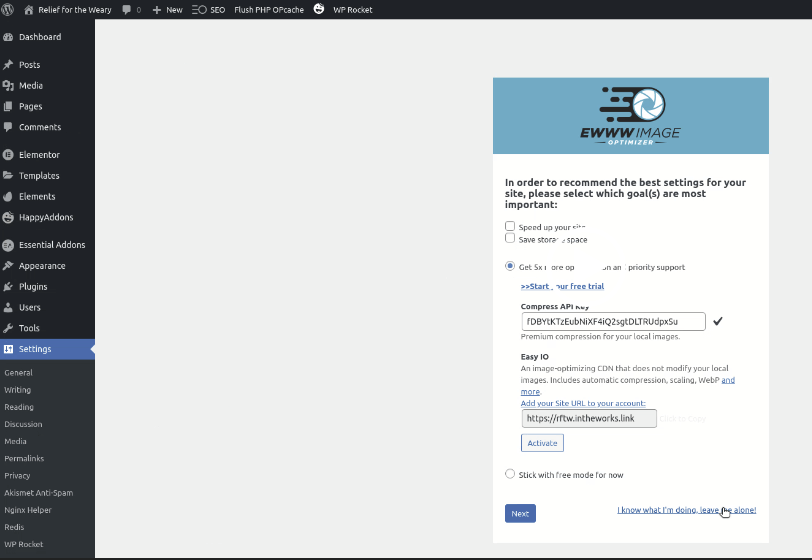
Select I know what I’m doing leave me alone.
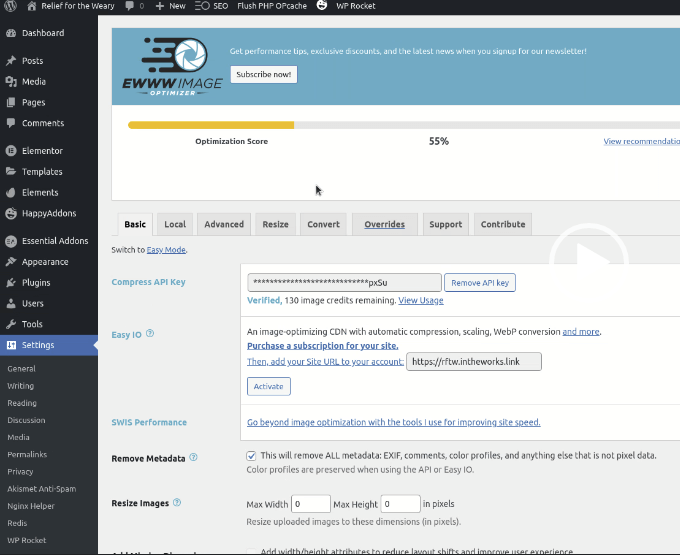
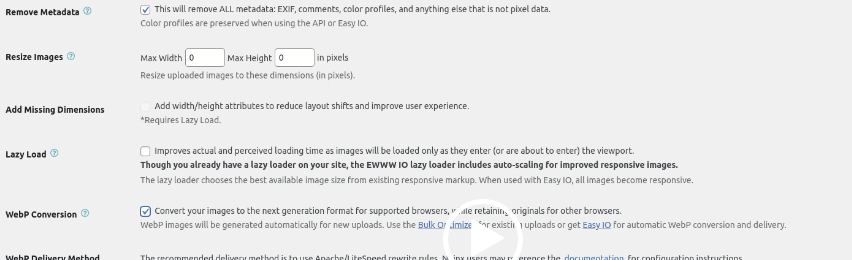
EWWWImage – Under Remove Metadata Select This will remove ALL metadata and Select Under WP Conversion Select Convert your images to the next generation format.
Go to Local Tab and Select Premium Plus for JPG and PNG Optimization Level. Select High compression for PDF Optimization.
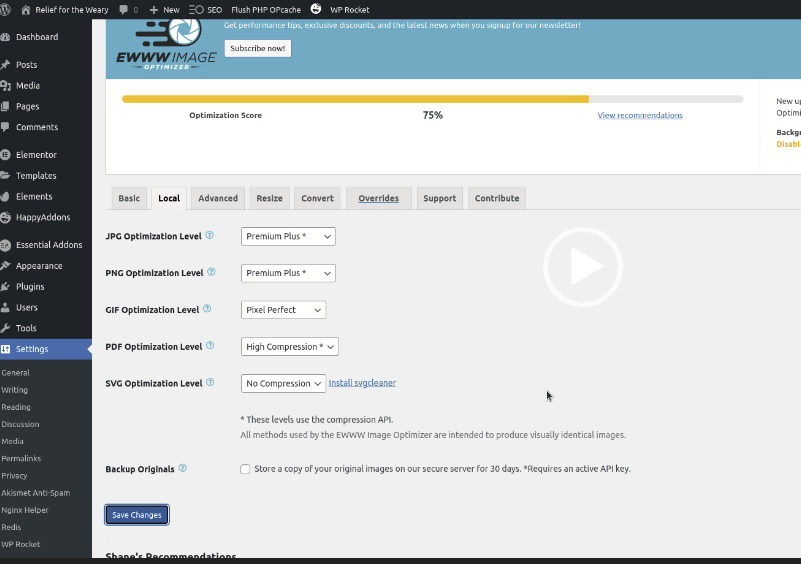
EWWWImage – Select the Advanced Tab
Select Include Media Folders
Select Optimize the Original version of images that have been scaled down by WordPress
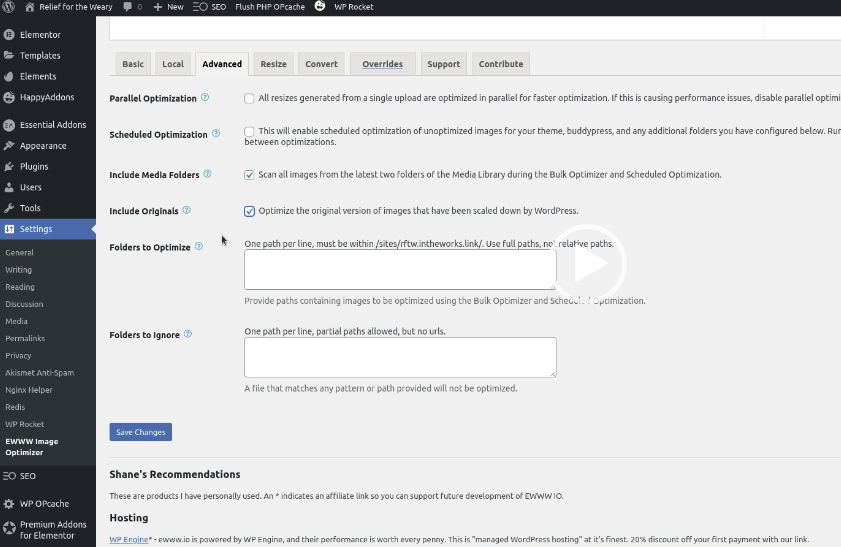
Select the Resize Tab
Check, Highlight images that need to be resized because the browser is scaling them under Resize Detection,
Check, All resizing of existing Media Library Images
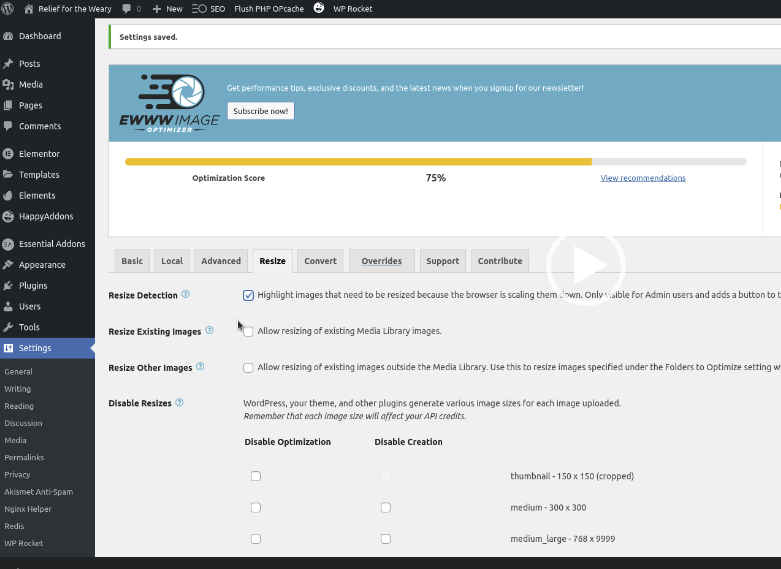
Go to WPSEO
Note: Select Activate License may give message you are not authorized to view this page. May need to Deactivate and then Reactivate. How to License section at the end.
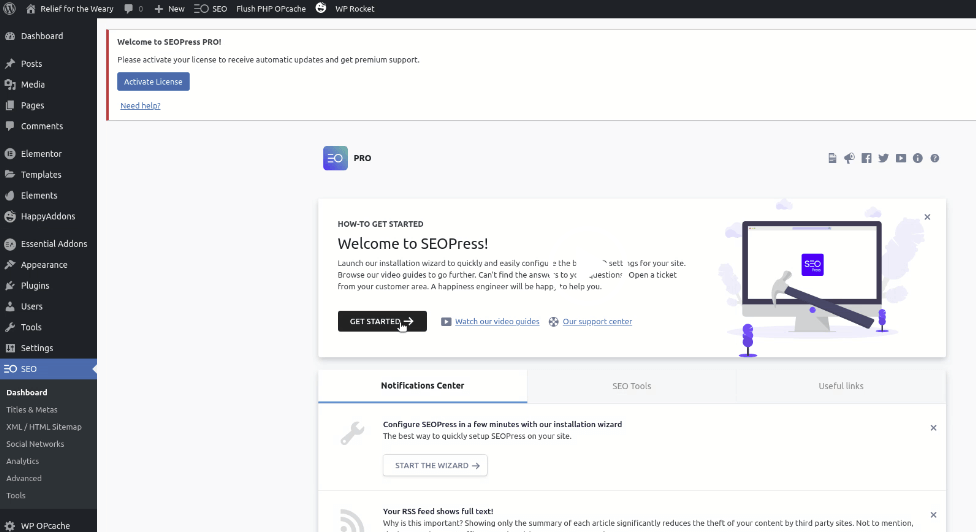
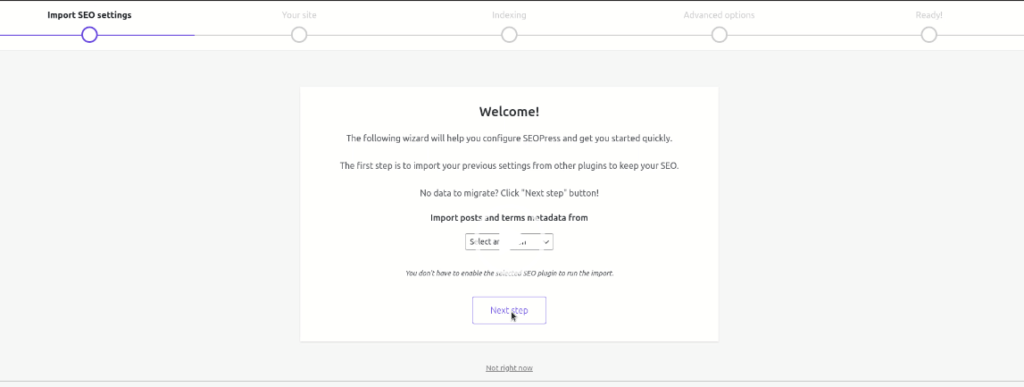
Select Get Started to Setup
Select Next if no data to migrate
Enter the Separator |
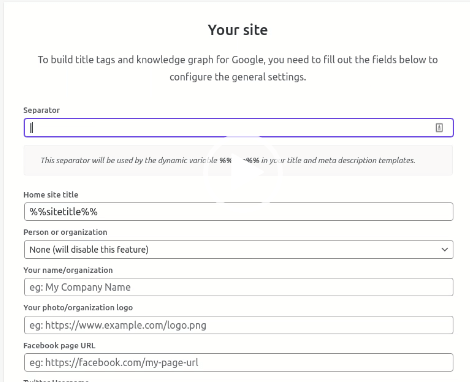
Continue
Again Continue
Activation of License may require to Deactivate and Reactivate. WPSEOPro will require download Plugin zip file. Upload file Plugin.

Go to SEOPress
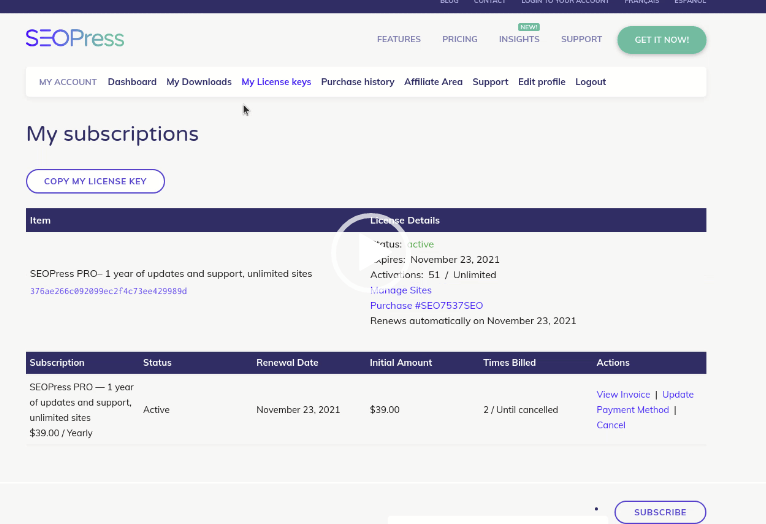
Select Manage Sites
Enter Site under all the managed sites.

Clear Cache
Go to SEO
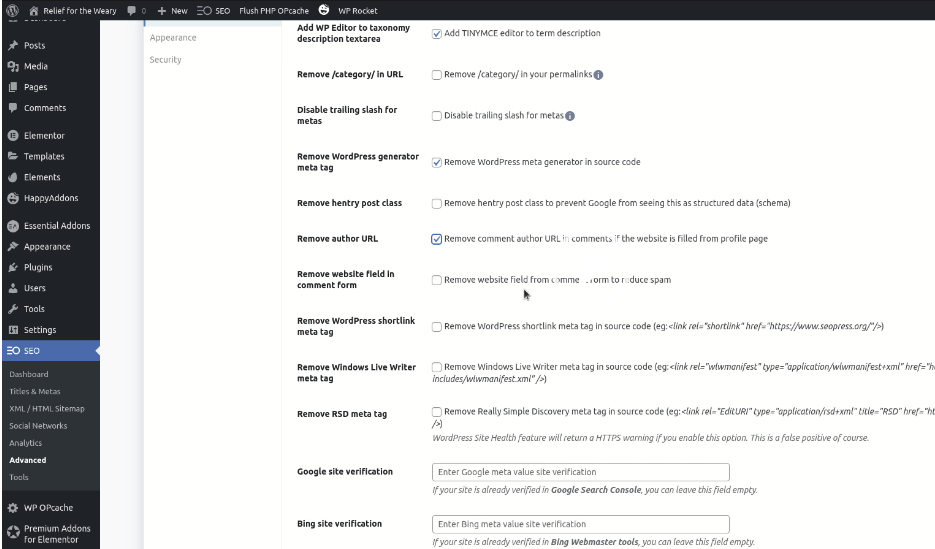
Select the Advanced Tab
Check Add TINYMCE editor to term description under Add WP Editor to taxonomy
Check Remove WordPress meta generator in source code under Remove WordPress generator meta tag
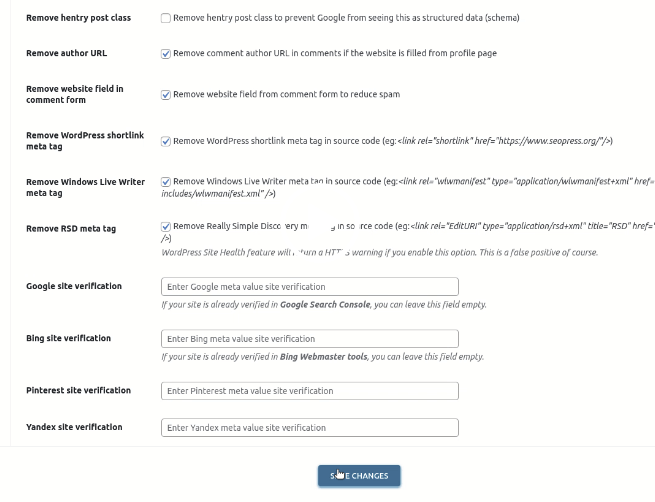
Check Remove comment author URL to comments under Remove author URL
Check Remove website field from comments
Check Remove WordPress short links meta tag
Check Remove Windows Live Writer
Check Remove Really Simply Discovery
Finish Setting Up WordFence
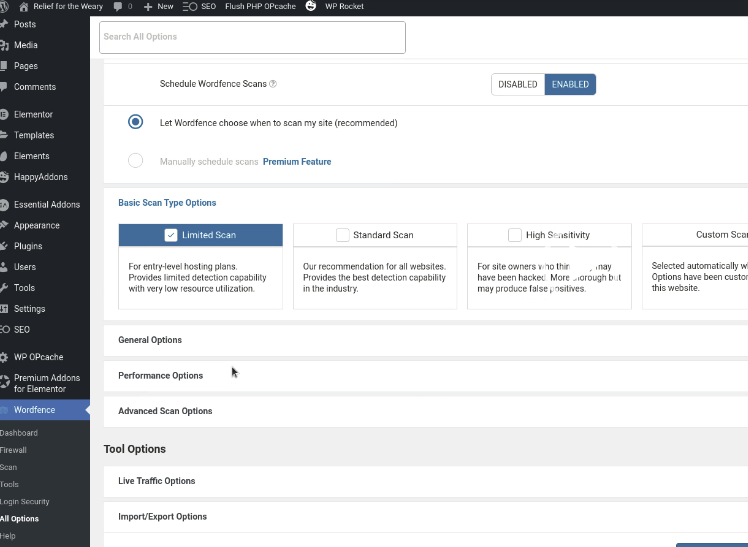
Under all Options
Open up Basic Scan Type Options
Select Limited Scan
Go to Settings under General and make sure Administrative Email is set to support+something.intheworks.link@vitalitysouth.com or support+domain.com@vitalitysouth.com