Twilio manages the phone system.
- Overview of Twilio
- How to Set Up a Phone
- How to Set Up Call Forwarding
- How to Set Up Text Messages
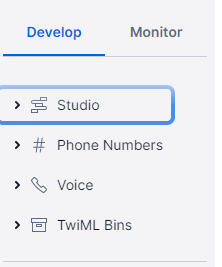
- Twilio Overview
Studio handles the call forwarding and text messaging.
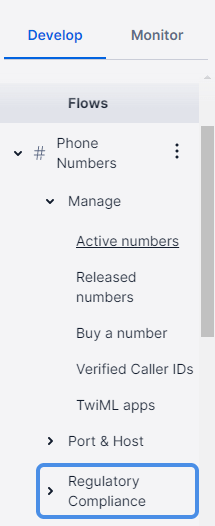
Phone – Manages Active Numbers
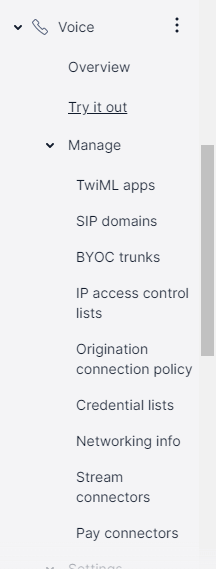
Under voice set up SIP Domains and Network
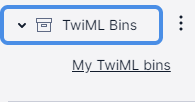
Configuring phones starts with TwiML Bins
This is the first place to go when configuring or changing a configuration on the phone.
2. Phone Set Up
Select My TwiML bins
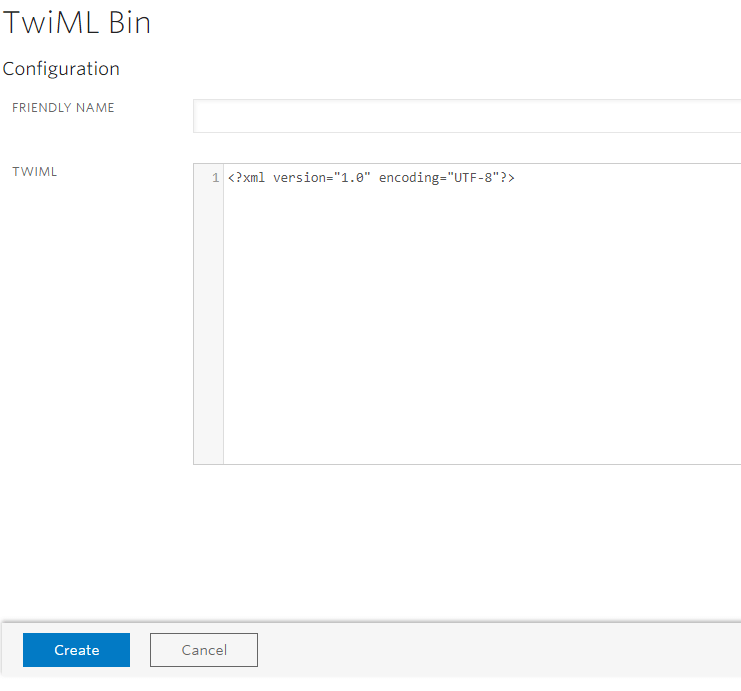
Friendly Name
Enter: ToName
Copy paste the code from a previously set up phone.
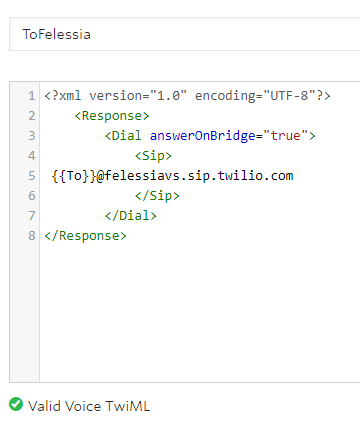
Example
Next, change the name to the new name @namevs.sip.twilio.com
Next, Go to SIP Domain under Voice, Manage, SIP Domains
Select the +
Configure
Properties
Enter Friendly Name, example John Doe
Enter SIP URI, this will be the same as entered in TwilioBin. Example felessiavs or johndoevs
Voice Authentication
Credential List
Select the +
Enter Friendly Name
Enter User +13332224444
NOTE: User must start with +1
Create a unique password
Select entry just created from drop down
Call Control Configuration
Under A Call Comes In – Select ‘Outbound Voice’
Enable SIP Registration
Credential List
Select new entry
SAVE
Go to Network Info
Voice, Manage, Network Info
Select a SIP Domain, select new name entry
Next go to Phone Numbers, Active, Manage
Select the new number configuring
Enter Friendly Name, example John Doe
Under Voice and Fax, A Call Comes In, Select ToName from drop down.
SAVE
Next Finish setting up phone
Get IP of phone
Go to HOME button on the phone and toggle to Settings then Network
Get IP
Look up IP online – https:\\IP
Proceed with Advanced at the bottom on the page
Select Simple Set Up
Go to Time Synchronization
Select north-america.pool.ntp.org
Go to SIP Server
Address: namevs.sip.ashburn.twilio.com
Port: 5060
SIP Outbound Proxy MAKE NO CHANGES
SIP Line Identification
Display name: First and Last Name
Address: +16623334444@namevs.sip.twilio.com
Authentication User ID: +16623334444
Authentication Password: Same Password generated in LastPass
Label: First and Last Name
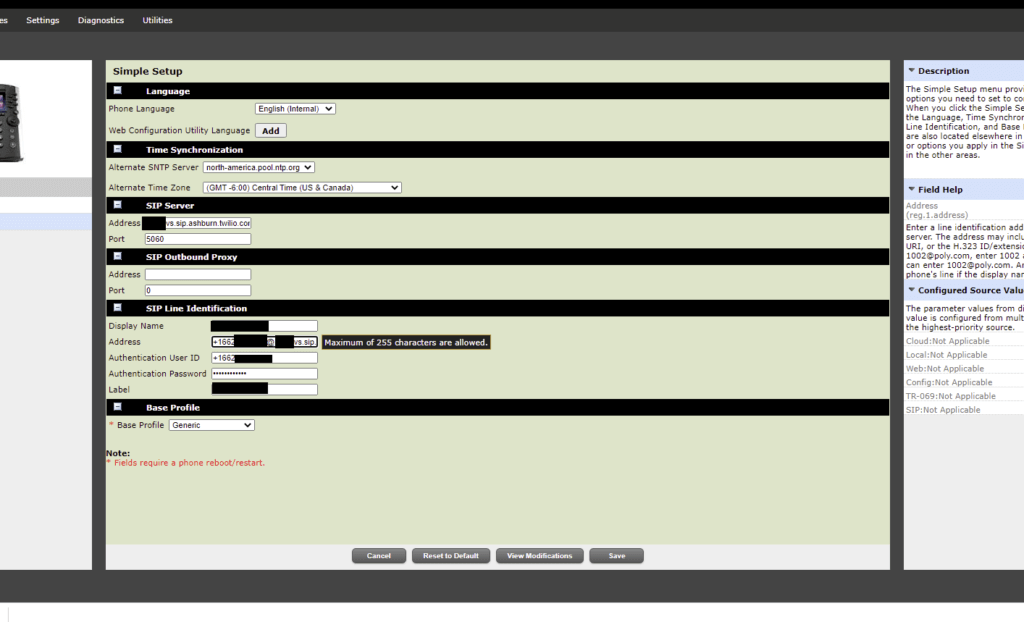
Save
Final Step
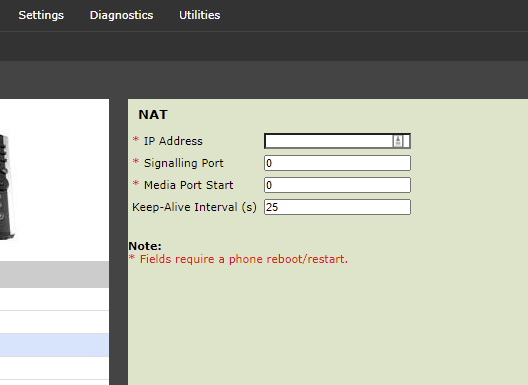
Go to Settings
Select Network
Select Nat
Enter 25 for Keep Alive Interval
Test by calling with an Inbound and Outbound Call