How to import Gmail contacts into Outlook
To import Gmail or Google Contacts into Outlook, follow these steps-
- Open the contacts.google.com website.
- Sign in to your Google account.
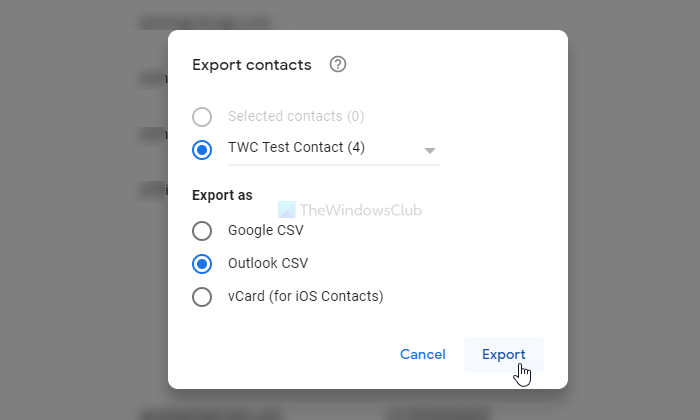
- Click the Export option.
- Select contacts and Outlook CSV options.
- Click the Export button.
- Open the Outlook app on your PC.
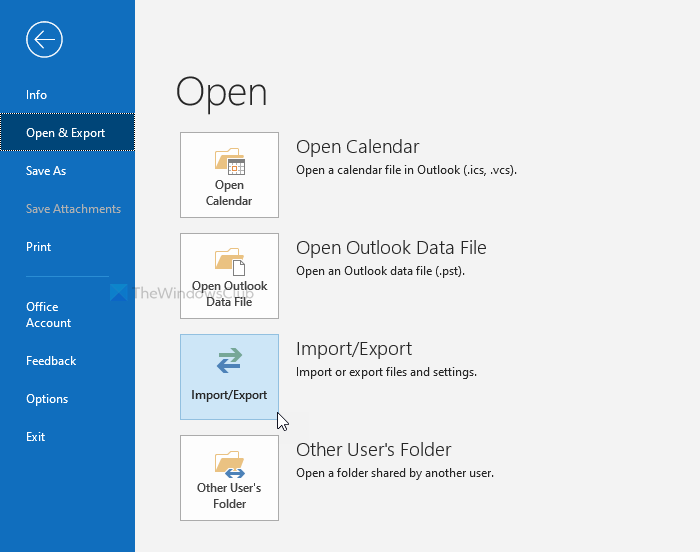
- Go to File > Open & Export > Import/Export.
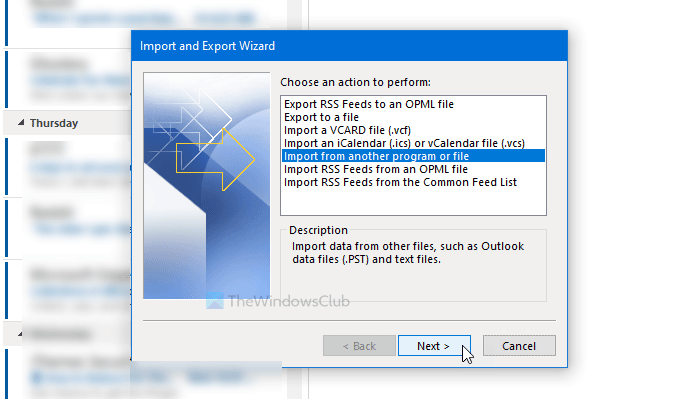
- Choose Import from another program or file and click Next.
- Select Comma Separated Values and click Next.
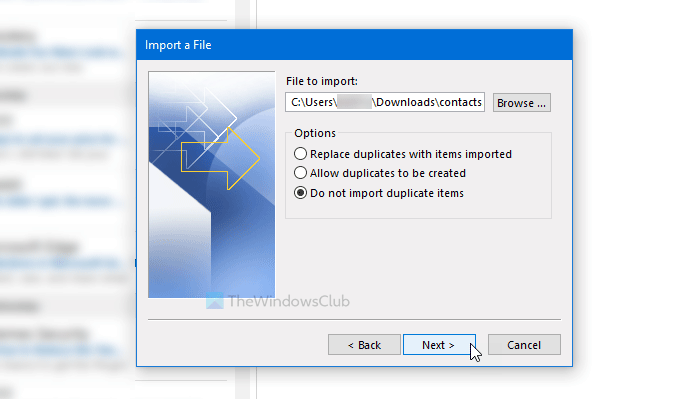
- Click the Browse button, select the exported file, and click Next.
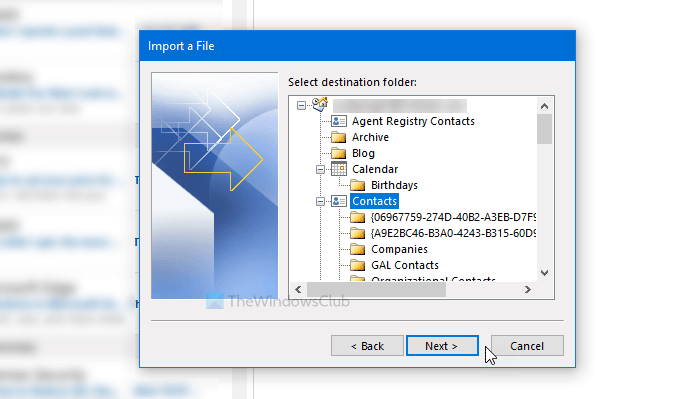
- Select Contacts from the Select destination folder box and click Next.
- Click the Finish button.
Open the official website of Google Contacts – contacts.google.com, and sign in to your Google account. Then, click the Export option, select the contacts you want to export, select Outlook CSV, and click on the Export button.
Following that, download the Outlook app on your computer and go to File > Open & Export > Import/Export option.
Next, select Import from another program or file and click on the Next button.
After that, select Command Separated Values and click on the Next button. Click the Browse button, select the exported file, and click the Next button.
Then, click on the Contacts in the Select destination folder box, and click the Next button.